

Storage fees rarely trigger urgent Slack messages the way a Buy Box loss or compliance flag does. They accumulate quietly - a few dollars per SKU per month across hundreds of ASINs - until someone finally asks why margin on paper does not match margin in the bank. The answer is often sitting in a report most operators download once a year and never pivot.
This guide walks through auditing Amazon storage fees per ASIN in under five minutes using Seller Central and Excel. No third-party tools required - just the Monthly Storage Fees report and a pivot table.
Why Storage Fee Per ASIN Matters at Scale
At catalogue scale, aggregate storage spend in the P&L hides which SKUs are anchors. A slow-moving seasonal item carrying four months of cover can cost more in storage than it earns in contribution margin. Without ASIN-level visibility, replenishment decisions keep feeding inventory into SKUs that should have been cleared months ago.
Monthly per-ASIN audits let you tie storage dollars directly to sell-through rate and revenue - the same triage logic used in catalogue optimization at scale, applied to fulfilment economics.
Step 1: Find the Monthly Storage Fees Report
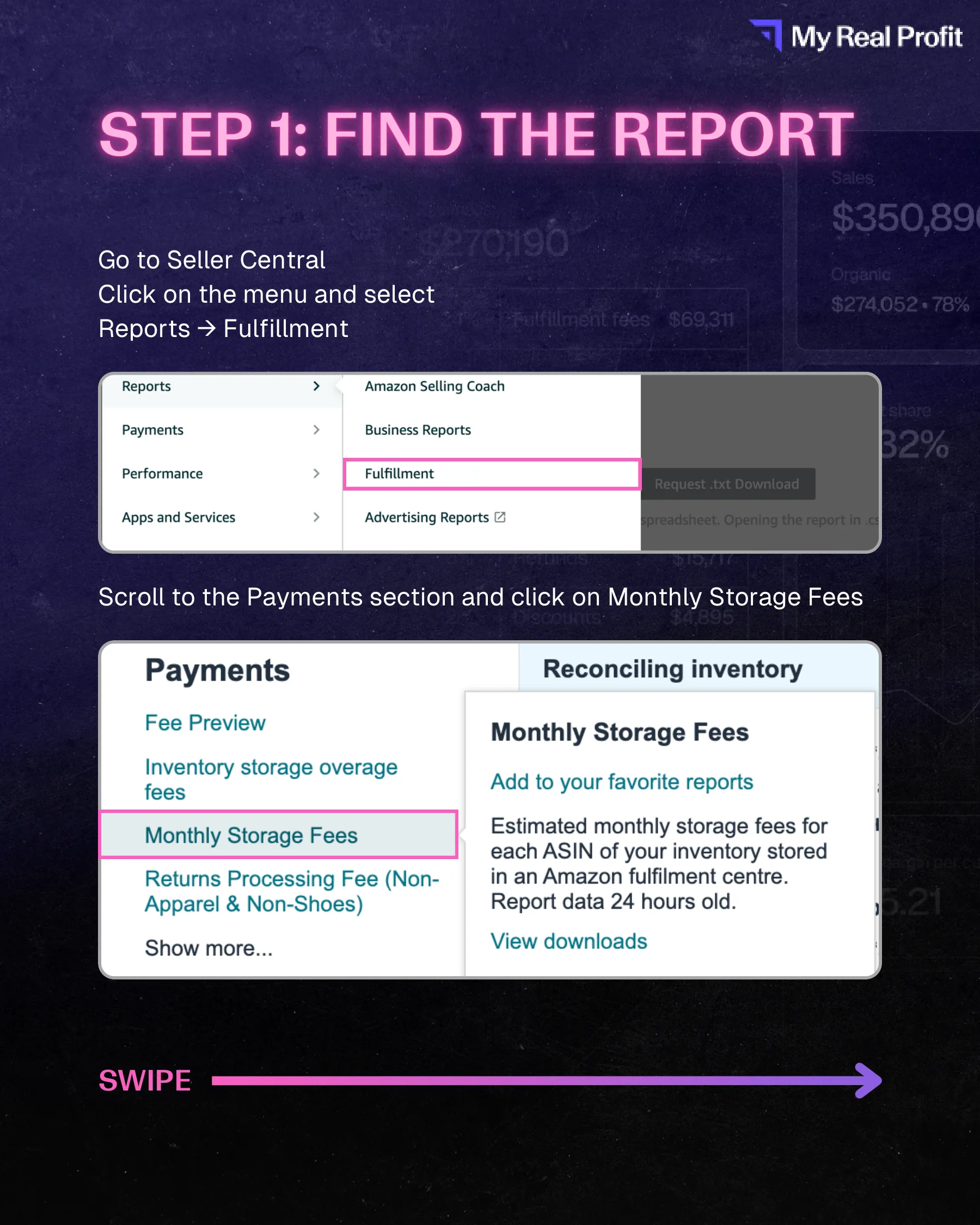
In Seller Central, open the menu and navigate to Reports → Fulfillment. Scroll to the Payments section and click Monthly Storage Fees.
Step 2: Choose the Right Month
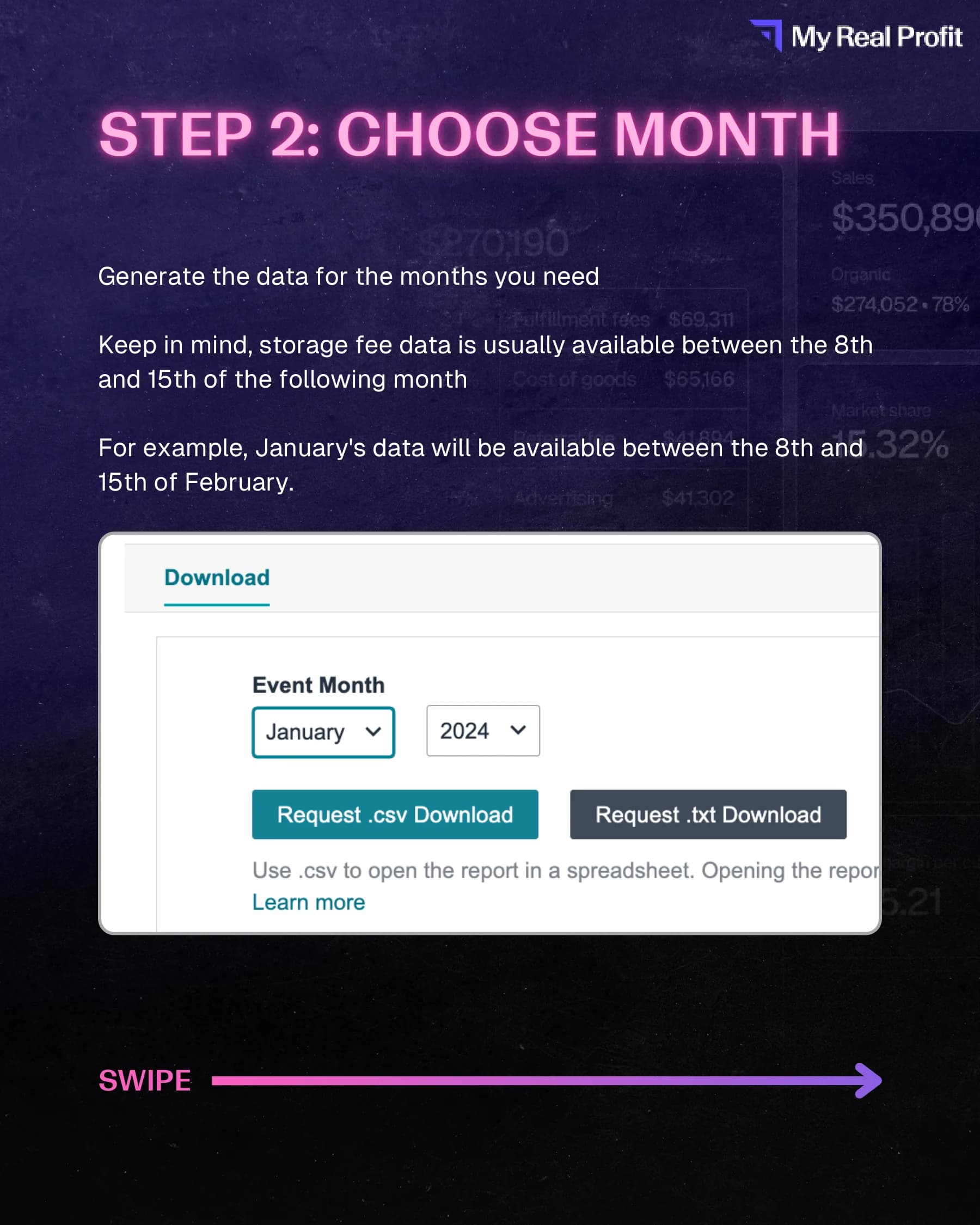
Generate data for the months you need to compare. Storage fee data is usually available between the 8th and 15th of the following month - January fees appear around February 8th-15th, for example. If you are reconciling Q4 overstock, pull October through December in separate downloads.
Step 3: Download the TXT Report
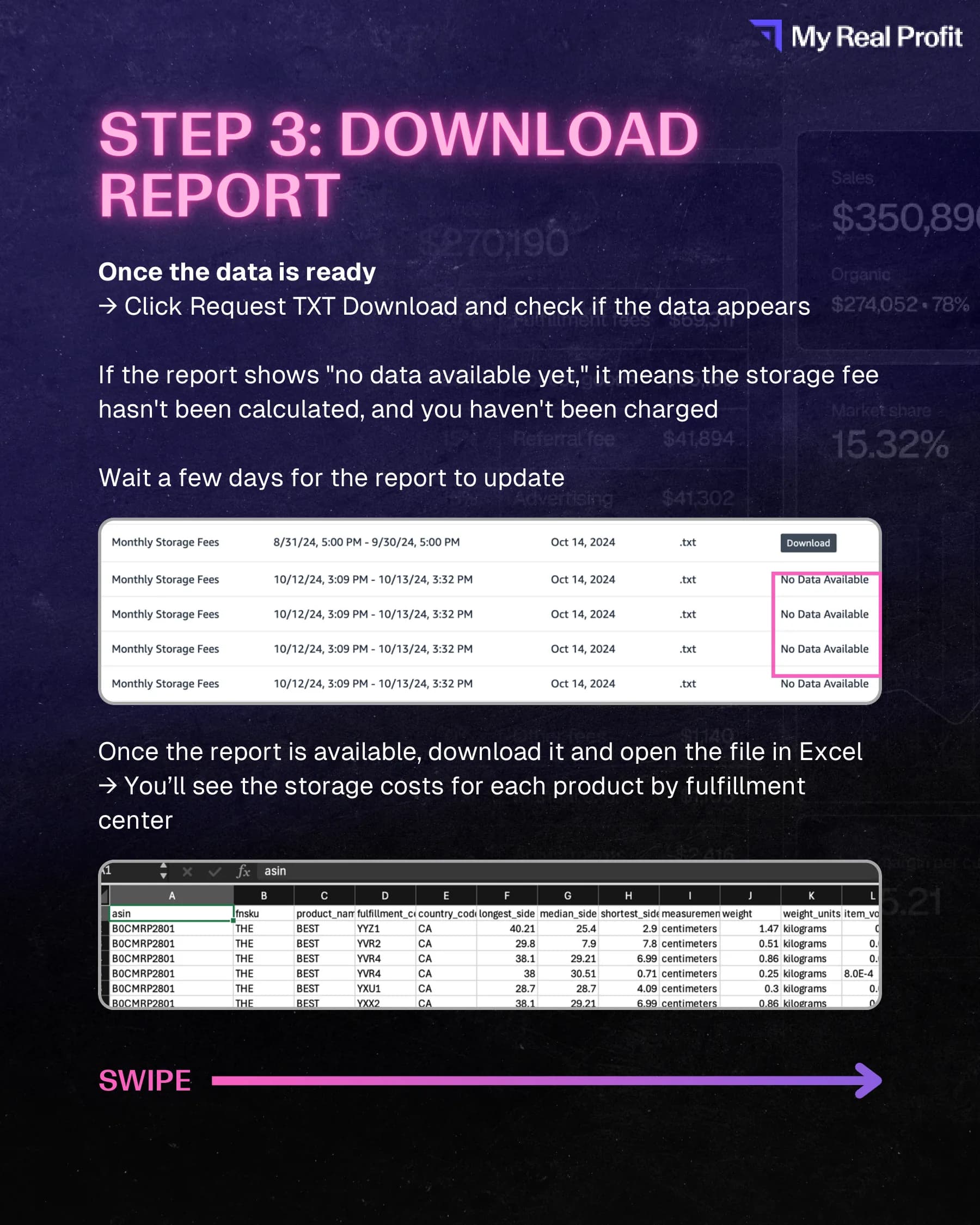
Once the report is ready, click Request TXT Download. If the portal shows "no data available yet," fees have not been calculated for that period - wait a few days and retry. When the file is available, download and open it in Excel.
Each row shows storage costs by product and fulfilment centre. You will roll these up to ASIN level in the next step.
Step 4: Open in Excel and Find Column AB
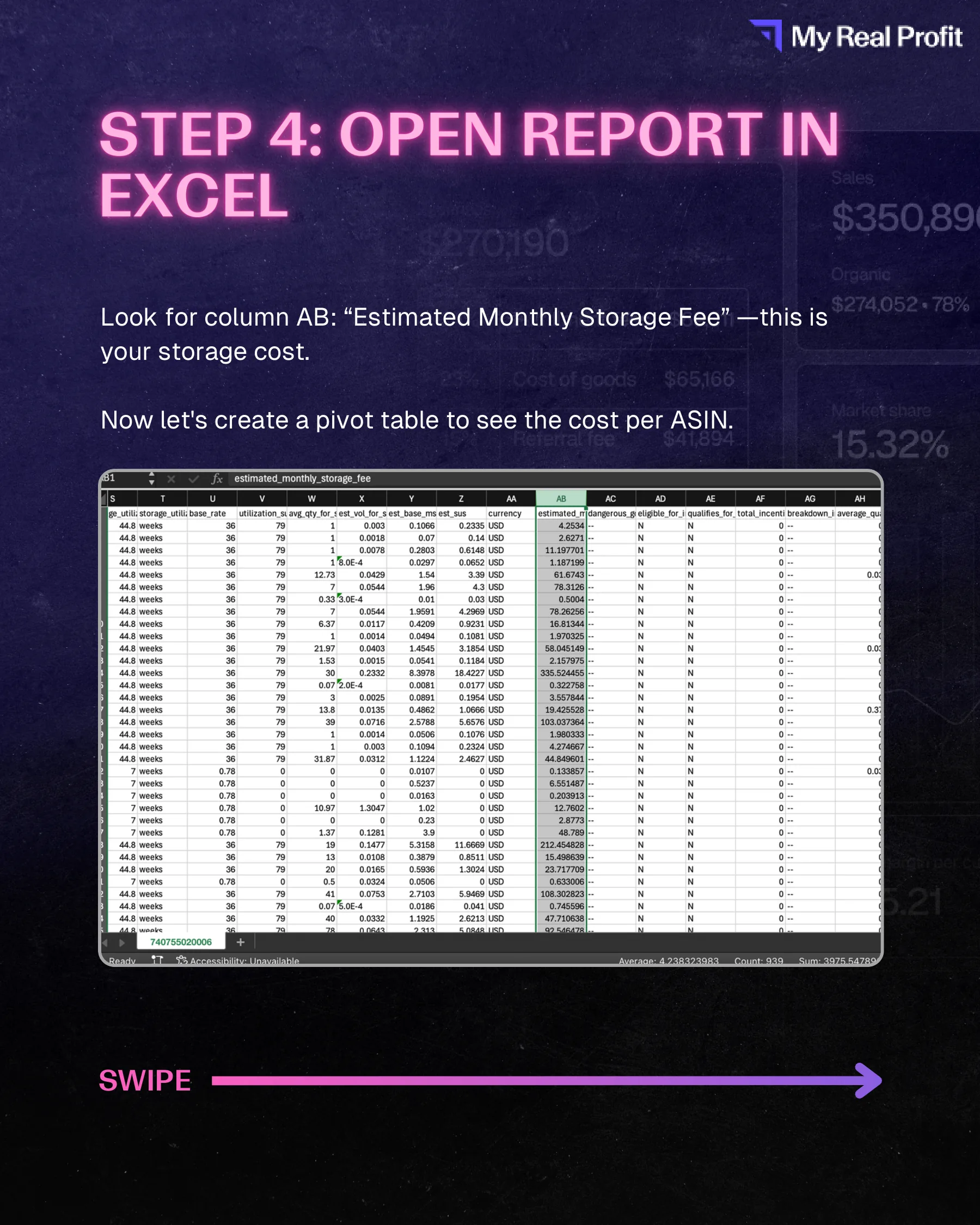
In the downloaded file, locate column AB: Estimated Monthly Storage Fee. This is the charge Amazon assessed for that row. Individual fulfilment-centre rows will duplicate ASINs - which is why the pivot in Step 5 sums to a true per-SKU total.
Step 5: Build a Pivot Table by ASIN
Select all data rows, then from the Excel ribbon choose Insert → Pivot Table on a new worksheet. Configure the pivot:
- Rows: ASIN
- Values: Estimated Monthly Storage Fee (Sum)
Sort descending by storage fee. The top of the list is your remediation queue - SKUs paying the most rent in Amazon's warehouse regardless of velocity.

What to Do With High-Storage ASINs
Storage fee dollars alone do not tell you to kill a SKU - they tell you where to look first. For each high-fee ASIN, pull trailing 90-day revenue, units sold, and weeks of cover. The remediation matrix is straightforward:
- High storage + low velocity: removal order, outlet deal, or bundle to clear aged units before Q4 long-term rate spikes.
- High storage + decent velocity: replenishment discipline - you may be over-ordering relative to forecast.
- High storage + strong hero revenue: acceptable if margin still works - but model whether smaller, more frequent inbound shipments reduce average on-hand inventory.
Operators managing 500+ SKUs cannot run this pivot manually every month for every SKU. The workflow belongs on a recurring calendar - same week storage data drops - with exceptions routed to whoever owns inventory planning. That cadence is what turns a one-time audit into margin protection.
Book a catalog scan - a 45-minute call where we look at your Amazon catalog, name the top three issues we'd attack first, and discuss whether a Pilot makes sense.
Book a catalog scan